How to Install PrideTime on Your Watch
After installing PrideTime from the Google Play Store, there’s one more step on your watch itself to make it your active watch face. It only takes a few seconds, but the watch will ask for a permission along the way — here’s exactly what to expect.
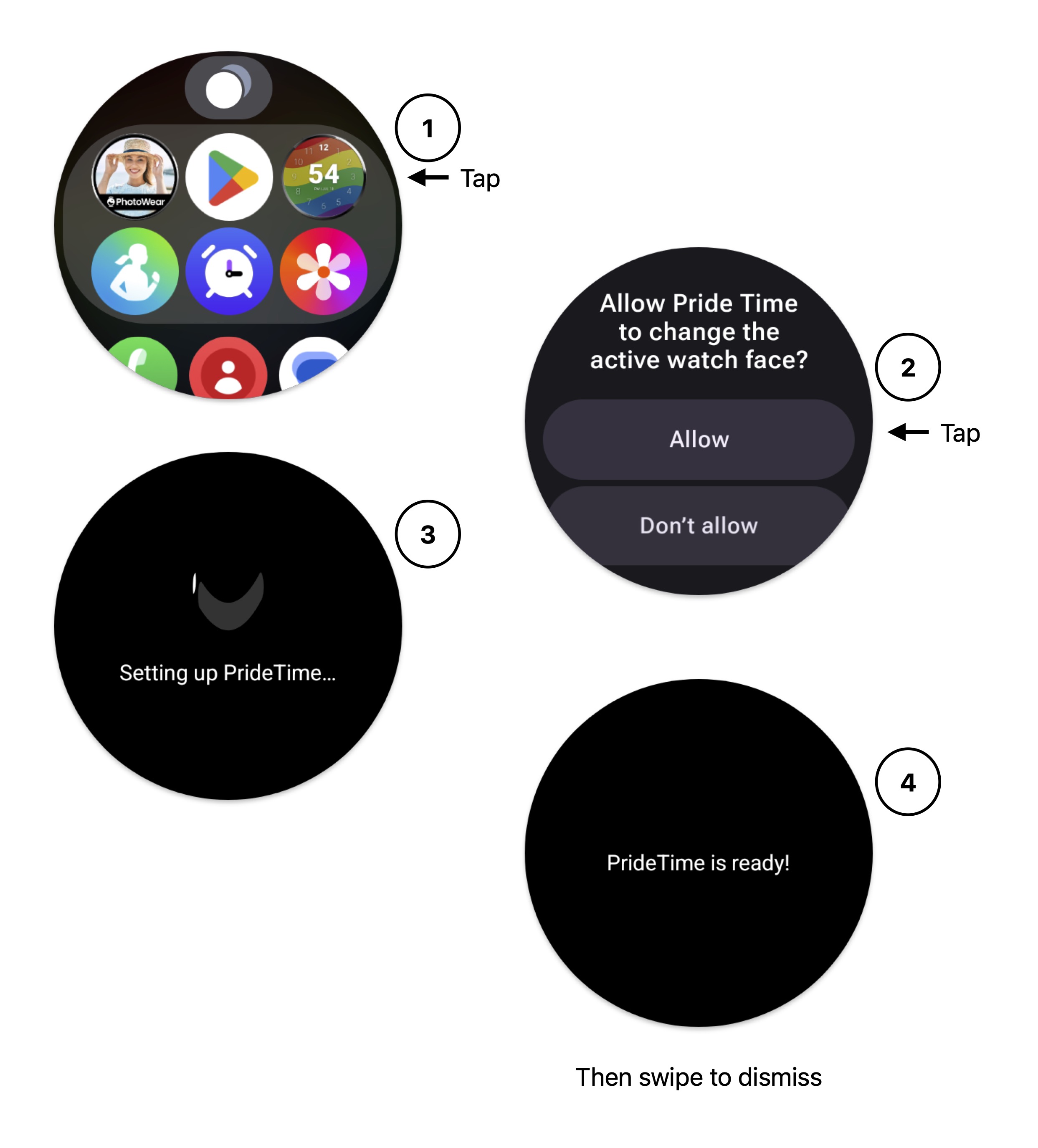
Step 1: Open PrideTime from your watch’s app list
On your watch, open the app list and tap the PrideTime icon.
Step 2: Allow PrideTime to change your watch face
Your watch will ask:
Allow PrideTime to change the active watch face?
Tap Allow.
This permission is required — it’s how PrideTime is able to set itself as your watch face. Without it, PrideTime can’t complete setup.
Step 3: Wait a moment while it sets up
You’ll briefly see a “Setting up PrideTime…“ screen. This usually only takes a second or two.
Step 4: You’re done!
Once you see “PrideTime is ready!”, your watch face has been set successfully.
Swipe to dismiss this screen, and you’ll see PrideTime as your active watch face.
Troubleshooting
I tapped “Don’t allow” by accident. No problem — just reopen the PrideTime app from your watch’s app list and try again from Step 2.
Nothing happened after I tapped Allow. Give it a few seconds — on some watches the setup screen can take a little longer to appear. If it still doesn’t show up after 30 seconds or so, try closing the PrideTime app on your watch completely and opening it again.
Still stuck? Contact support and we’ll help you sort it out.